How to Automatically File Emails in Outlook: 4 Methods (2026)
An Outlook rule files incoming email into the right folder by itself, with no add-in. This guide gives the steps for new Outlook, classic Outlook and Outlook on the web, the rules worth setting up first, and what to use for the email no rule can catch.
Right-click an email from the sender, choose Rules > Create rule, pick the destination folder and click OK. From then on, Outlook files every new email from that sender straight into the folder. For rules based on subject or keywords, use Settings > Mail > Rules (new Outlook, Outlook on the web) or Home > Rules > Manage Rules & Alerts (classic Outlook).
Quick Comparison: 4 Ways to File Emails Automatically
| Method | Runs automatically? | Setup | Works in | Cost |
|---|---|---|---|---|
| Outlook Rules | ✓ Yes, as mail arrives | 2–5 min per rule | Every Outlook version | Free |
| Quick Steps | ✗ No, one click per email | 2 min per folder | Classic and new Outlook, Outlook on the web | Free |
| Folder Suggest (AI) | Suggests, you confirm (one at a time or in bulk) | 2 min install, no rules | Classic and new Outlook, Outlook on the web, Mac | Free plan (5 emails/day), Pro €7.99/month |
| VBA Macros | ✓ Yes, while Outlook is open | 30+ min of coding | Classic Outlook for Windows only | Free |
Method 1: Create a Rule That Files Emails Automatically
Outlook Rules pair a condition (a sender, a word in the subject) with an action (move to a folder). On Microsoft 365 and Exchange accounts they run on the mail server, so matching email goes straight to its folder even while Outlook is closed and never appears in your inbox.
Which Outlook do you have?
"Outlook 365" can mean three different apps, and the rules menus are in different places in each:
- Classic Outlook for Windows has a File tab at the left of the ribbon.
- New Outlook for Windows has no File tab and a New Outlook toggle at the top right.
- Outlook on the web runs in your browser at outlook.office.com or outlook.live.com and works like new Outlook.
The Outlook app on your phone has no rules settings. Create the rule in one of the three above and it will still apply to mail you read on the phone, because the server files it before it reaches any device.
New Outlook for Windows and Outlook on the web
Quick version, for one sender:
- Right-click an email from the sender and point to Rules.
- Choose Create rule.
- Pick the destination folder and click OK.
With your own conditions (subject, keywords, several senders):
- Open Settings (the gear, top right) and go to Mail > Rules.
- Click Add new rule and give it a name.
- Under Add a condition, choose what the rule reacts to, for example From or Subject includes.
- Under Add an action, choose Move to and the folder.
- Tick Stop processing more rules if later rules shouldn't touch the same email.
- Click Save.
New Outlook doesn't support rules for Gmail, Yahoo or iCloud accounts at the moment. Set up filters with the provider instead.
Classic Outlook for Windows
- Right-click an email and choose Rules > Create Rule.
- Tick the condition you want, such as the sender or Subject contains.
- Tick Move the item to folder, click Select Folder and choose the destination.
- Click OK. In the prompt that follows, tick Run this rule now on messages already in the current folder if existing email should move too.
For rules with several conditions or exceptions, go to Home > Rules > Manage Rules & Alerts > New Rule. On a Mac the menus differ; Microsoft covers them in Create a rule in Outlook for Mac.
Filing what's already in your inbox
A new rule only acts on mail that arrives after you create it. To file what's already there, run it once by hand: Home > Rules > Manage Rules & Alerts > Run Rules Now in classic Outlook, or the Run rule option next to the rule under Settings > Mail > Rules in new Outlook and on the web.
Rules worth setting up first
- Everyone at one company: a condition on the sender's address containing the domain, such as
@contoso.com, catches every person there, including people who haven't written to you yet. - Newsletters: nearly every newsletter contains the word "unsubscribe". A rule on the message body sweeps them into a reading folder. Check that folder for the first week, because ordinary emails can contain the word too.
- Email where you're only on CC: a rule on "I'm on the CC line" separates information from email that expects a reply.
- Alerts and invoices: ticketing, billing and monitoring systems write the same way every time, which is exactly what rules are good at.
When a rule doesn't file anything
The usual causes are that the rule only runs on new mail, it's a client-only rule that needs classic Outlook open, an earlier rule catches the email first, or the rule was switched off after its destination folder was renamed. Exchange also caps all of a mailbox's rules at 256 KB combined, so how many rules you can have depends on how complex they are. The full checklist, matched to symptoms, is in 7 reasons an Outlook rule isn't moving emails.
One limit can't be fixed: a rule only knows the senders and words you gave it. The first email from a new contact, or about a project no condition mentions, stays in the inbox. The next three methods are for that email.
Method 2: Quick Steps
A Quick Step moves the selected email to a fixed folder with one click or a keyboard shortcut. It doesn't run on its own; you trigger it. That suits people who want to glance at each email before it's filed.
Classic Outlook
- On the Home tab, in the Quick Steps group, click New Quick Step > Move to Folder.
- Name it (e.g. "File: Finance") and select the destination folder.
- Optionally assign a shortcut from Ctrl+Shift+1 to Ctrl+Shift+9.
- Click Finish.
New Outlook and Outlook on the web
- On the Home tab, open the menu next to Quick steps and choose Manage quick steps.
- Click + New quick step and give it a name.
- Under Choose an action, pick the move-to-folder action and the destination.
- Optionally assign a shortcut. Here only Ctrl+Shift+5 to Ctrl+Shift+9 are available.
- Click Save.
The ceiling is the shortcuts: nine in classic Outlook, five in new Outlook. If you file into twenty folders, Quick Steps won't get you far. Microsoft's guide is Automate common or repetitive tasks with Quick Steps.
Method 3: AI-Powered Filing with Folder Suggest
Rules need a fixed pattern. Folder Suggest is an Outlook add-in for the email that has none. It compares an email's content with the email already in your folders and suggests the folder that fits best. There are no conditions to maintain, and it works with the folder structure you already have.
How it works
- One email: open an email and the Folder Suggest pane. It ranks your best-matching folders, with a bar showing how close each match is. Click Move to … to file it, or Undo to put it back.
- The whole inbox: the Triage view lists your inbox with a suggested folder beside each email. Accept N strong matches lets you review and file every clear match at once.
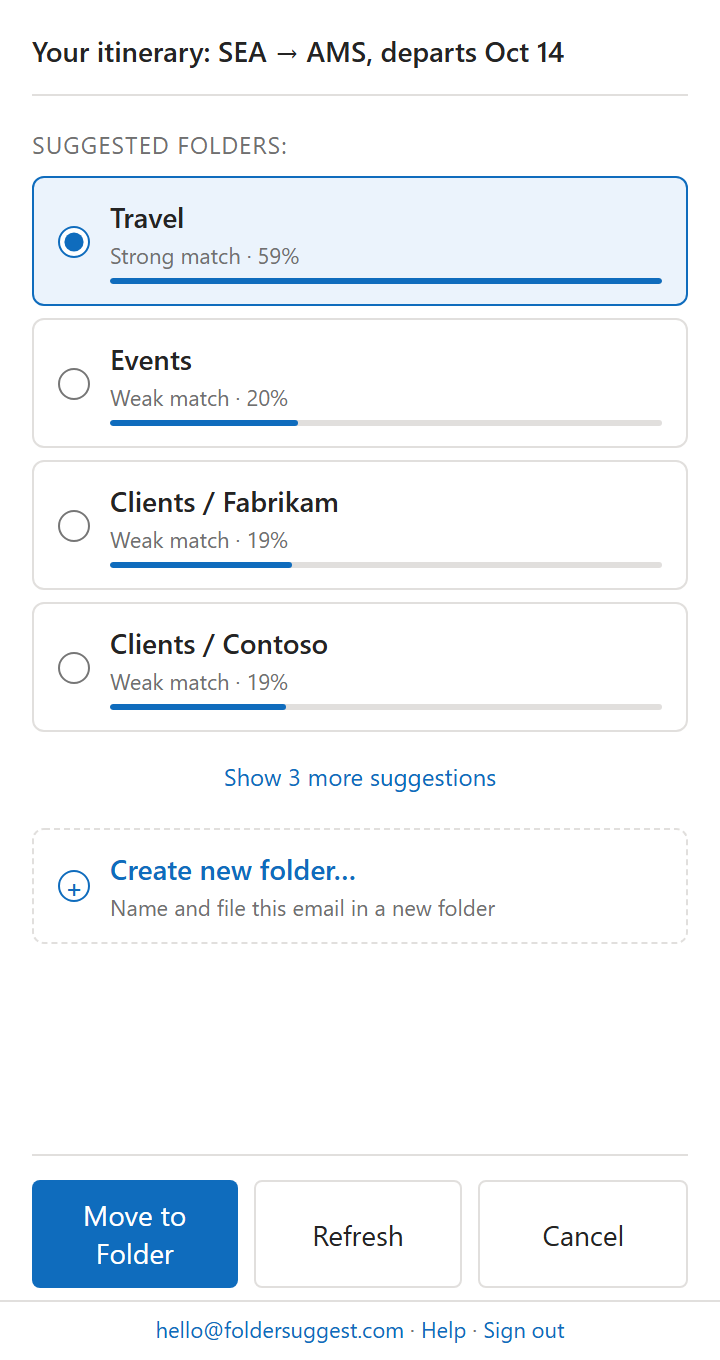
The AI model runs on your device, so your email content isn't sent to an external server. The model (~20 MB) downloads once and is cached; after that a suggestion takes a second or two.
Pros
- Works from a new sender's first email, because it reads the content instead of matching conditions.
- No maintenance. Add a folder or reorganise, and the suggestions follow.
- Handles sent mail too, which rules don't. See how to file sent emails in Outlook.
- Runs alongside your rules. Rules take the predictable email, Folder Suggest the rest.
Cons
- Not fully automatic. You confirm each suggestion, singly or in bulk. That's deliberate, so nothing lands in the wrong folder unnoticed.
- The free plan stops at 5 filed emails a day. Unlimited filing is Pro, €7.99/month.
For the email no rule can catch: Folder Suggest suggests the right folder, based on how you already file.
Install Folder Suggest →Method 4: VBA Macros (Advanced)
In classic Outlook for Windows you can write your own filing logic in the VBA editor and run it on every new email. It's only worth it for something a rule can't express, such as checking senders against a client list. The code goes in the ThisOutlookSession module (open the editor with Alt+F11).
Example: auto-file by sender domain
The macro only handles the email that just arrived, instead of looping over the whole inbox on every new message. The "Clients" folder must exist as a subfolder of the inbox.
Cons
- Classic Outlook for Windows only. New Outlook, Outlook on the web and Mac don't run VBA.
- Outlook has to be open. Unlike a server-side rule, the macro only works while Outlook runs on your PC.
- Often blocked. Many organisations disable macros through Group Policy.
- Breaks when things change. Rename the folder and the macro fails, and whoever inherits it has to read your code to fix it.
Which Method Should You Use?
- Rules for anything with a fixed pattern: specific senders, companies, newsletters, alerts. They're free and run without you.
- Quick Steps if you file into a handful of folders and want to see each email first.
- Folder Suggest for email without a pattern: new contacts, changing projects, many folders.
- VBA only if you need logic no rule can express and you use classic Outlook.
In practice the combination works best: rules for the predictable email, Folder Suggest for the rest. If your rule list keeps growing, Outlook rules alternatives covers other approaches.
Frequently Asked Questions
How do I automatically send emails to a folder in Outlook?
With a rule. Right-click an email from the sender, choose Rules > Create rule, pick the folder and click OK. For conditions like subject keywords, create the rule under Settings > Mail > Rules (new Outlook, Outlook on the web) or Home > Rules > Manage Rules & Alerts (classic Outlook).
Can Outlook auto-file emails based on sender?
Yes. Create a rule with the condition "From" and the action "Move to". To catch everyone at a company, including people who haven't emailed you before, set the condition on the domain part of the sender's address, for example @contoso.com.
Does Outlook have automatic filing built in?
Only through rules, which are automatic but need a fixed condition, and Quick Steps, which you trigger by hand. For email without a fixed pattern, such as a first message from a new contact, you need an add-in like Folder Suggest that suggests the folder from the email's content.
Why is my Outlook rule not moving emails to the folder?
The three most common reasons: rules only act on new mail, so messages already in the inbox stay until you run the rule manually; the rule is client-only and runs only while classic Outlook is open on one computer; or an earlier rule matches the message first and stops processing. If none of those apply, the rule's condition usually doesn't match the message, for example because the sender writes from a second address. The full checklist is in Outlook rule not moving emails to a folder.
Can I automatically move emails to a folder in the Outlook app on my phone?
Not from the app itself. Outlook for iPhone and Android has no rules settings. Create the rule in Outlook on the web or in Outlook on your computer instead. Server-side rules run on the mail server before mail reaches any device, so messages arrive on your phone already in the right folder.
Folder Suggest is free to start and installs in about 2 minutes. No rules to write, no configuration.
Install Folder Suggest →